Guias e Tutoriais |
Overview
In previous tutorials we showed how to use the Finder Opta to read MID
counters from a Finder 7M energy
meter,
and also how to use the device as BLE
Perpheral.
In this tutorial we will instead show how to publish via BLE the content of a
counter read from the Finder 7M, using a dedicated BLE Service on the Finder
Opta. In particular, this Service is going to have two Characteristics,
respectively for the mantissa and the exponent of the Import Active Energy
measured by the Finder 7M energy meter.
Goals
- Learn how to create a BLE Service with multiple read-only Characteristic on
the Finder Opta. - Learn how to take advantage of the BLE capabilities of the Finder Opta to
transmit the value of a MID certified counter of the Finder 7M energy meter.
Required Hardware and Software
Hardware Requirements
- Finder Opta PLC with RS-485 support (x1).
- Finder 7M energy meter (x1).
- 12VDC/1A DIN rail power supply (x1).
- USB-C® cable (x1).
- Wire with either specification for RS-485 connection (x3):
- STP/UTP 24-18AWG (Unterminated) 100-130Ω rated.
- STP/UTP 22-16AWG (Terminated) 100-130Ω rated.
Software Requirements
- Arduino IDE 1.8.10+, Arduino IDE
2.0+ or Arduino Web
Editor. - If you choose an offline Arduino IDE, you must install the
ArduinoBLE
library. You can install it using the Library Manager of the Arduino IDE.
Additionally, you will need to install theFinder 7M for Finder Opta library:
you can clone it from GitHub directly into
the directory containing all the rest of your libraries. - Example code.
Finder Opta and BLE
Using the ArduinoBLE library, the Finder Opta can act as BLE Peripheral and
configure Services with one or more Characteristic in read-only mode, allowing
it to publish data that a Central can read after connecting to the Finder Opta.
Instructions
Setting up the Arduino IDE
This tutorial will need the latest version of the Arduino
IDE. If it is your first time setting up
the Finder Opta, check out the getting started
tutorial.
Make sure you install the latest version of the
ArduinoBLE
library, as it will be used for BLE communication with the Central.
Finally, to install the Finder 7M for Finder Opta library you can clone it
from GitHub and then move it to the
libraries folder inside your sketchbook. For further details on how to manually
install libraries refer to this
article.
Connecting the Finder Opta and Finder 7M
Just like in the previous
tutorial
we will need to power the Finder Opta with the 12VDC/1A supply and connect it
to the 7M via RS-485 serial connection. To complete these steps refer to the
following diagram:
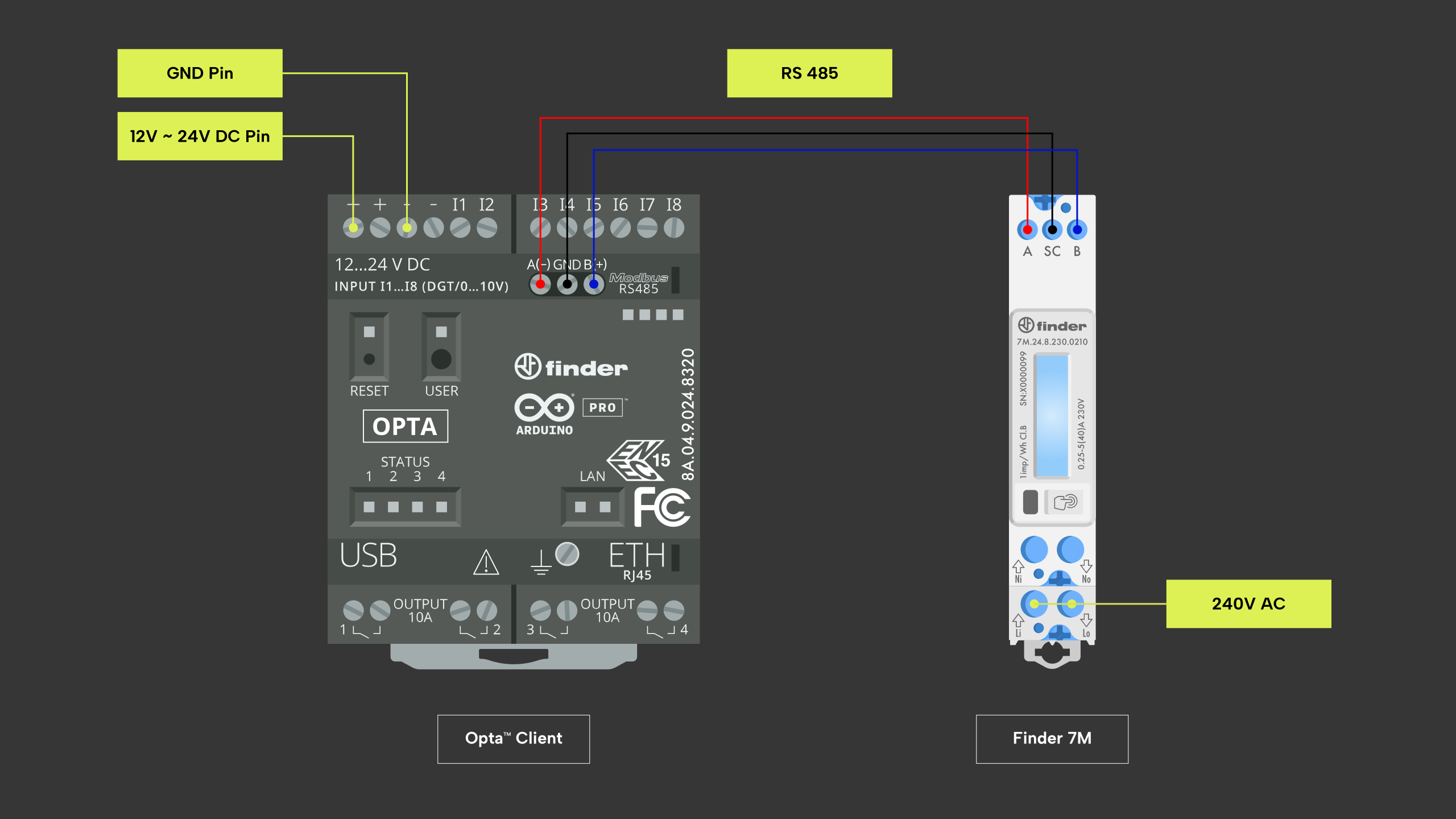
For the example code to work, you will need to set the communication parameters
for the 7M energy meter to:
- Modbus address
20. - Baudrate
38400. - Serial configuration
8-N-1.
This can easily be done with your smartphone using the Finder Toolbox
application
via NFC.
Code Overview
The goal of the following example is to configure the Finder Opta as BLE
Peripheral, in order to create two read-only Characteristics that a Central can
access to read the mantissa and the exponent of the Import Active Energy
measured by a Finder 7M energy meter connected to the Finder Opta via Modbus.
In particular, we will configure a Service with two Characteristics in it and
we will start advertising, waiting for a Central to connect: once it does, we
will read the MID certified counter of the Finder 7M that stores the Import
Active Energy, and we will return the measure inside the Characteristics.
Sketch setup
At the start of the sketch we declare the BLE Service and the Characteristics
with their relative UUIDs. Additionally, the Characteristics will be configured
in read mode:
BLEService service7m("1915aec0-d36d-40cb-9a57-1617998202a1");
BLEIntCharacteristic inActiveMantissa("1915aec1-d36d-40cb-9a57-1617998202a1", BLERead);
BLEIntCharacteristic inActiveExponent("1915aec2-d36d-40cb-9a57-1617998202a1", BLERead);
Next, we will create a Finder7M object taking advantage of the Finder7M
library, and we will define a constant containing the Modbus address of the
energy meter that we want to read from:
Finder7M f7m;
constexpr uint8_t MODBUS_7M_ADDRESS = 20;
In the setup() function we will configure the advertised name of the device,
and then we will pair Service and Characteristics, also setting their initial
values; at the end of these operations we will start advertising. The code of
the function is shown below:
void setup()
{
    Serial.begin(9600);

    // Init the BLE service.
    if (BLE.begin() == 0)
    {
        while (1)
        {
        }
    }

    // Init the Finder7M.
    if (!f7m.init())
    {
        while (1)
        {
        }
    }

    // Set local name and service UUID.
    BLE.setLocalName("Finder Opta");
    BLE.setAdvertisedService(service7m);

    // Add service and characeristics.
    service7m.addCharacteristic(inActiveMantissa);
    service7m.addCharacteristic(inActiveExponent);
    BLE.addService(service7m);

    // Set initial value.
    inActiveMantissa.writeValue(0);
    inActiveExponent.writeValue(0);

    // Start advertising.
    BLE.advertise();
}
Main loop
The loop() function of this sketch listens for connections by the Central,
until one is actually connected: at that point, the Finder Opta will read the
MID certified counter of the Finder 7M energy meter that contains the Import
Active Energy, and it will return its mantissa and exponent in two
Characteristics. The code of the main loop is attached below:
void loop()
{
    // Check if any central is available.
    BLEDevice central = BLE.central();
    if (central)
    {
        Serial.println("Central connected.");
        while (central.connected())
        {
            // As long as central is connected write to characeristics mantissa and exponent every second.
            Measure inActiveEnergy = f7m.getMIDInActiveEnergy(MODBUS_7M_ADDRESS);
            inActiveMantissa.writeValue(inActiveEnergy.mantissa());
            Serial.print("mantissa: " + String(inActiveEnergy.mantissa()));
            inActiveExponent.writeValue(inActiveEnergy.exponent());
            Serial.println(", exponent: " + String(inActiveEnergy.exponent()));
            delay(1000);
        }
        Serial.println("Central disconnected.");
    }
}
Interaction example
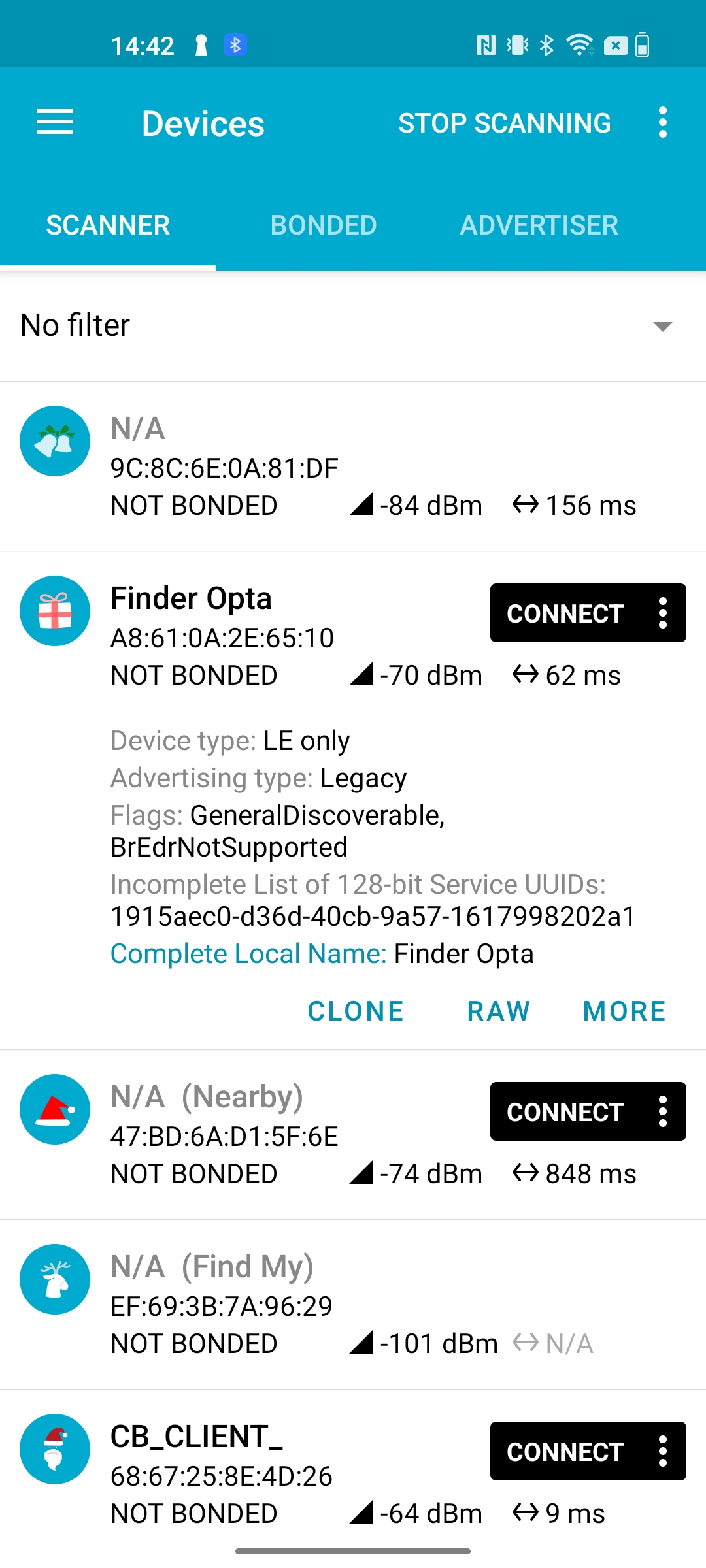
Once the sketch has been compiled and uploaded to the Finder Opta, we can use
the nRF
Connect
app to connect to the BLE Peripheral and read the values inside the
Characteristics. At the end of a scan, the Finder Opta will appear among the
available devices:
We then proceed by connecting to the device, after which we see a Service and
two Characteristic with UUIDs matching the ones assigned by the sketch to the
inActiveMantissa and inActiveExponent Characteristics. Let’s now click on
the icons with the arrow pointing down in order to read the values:
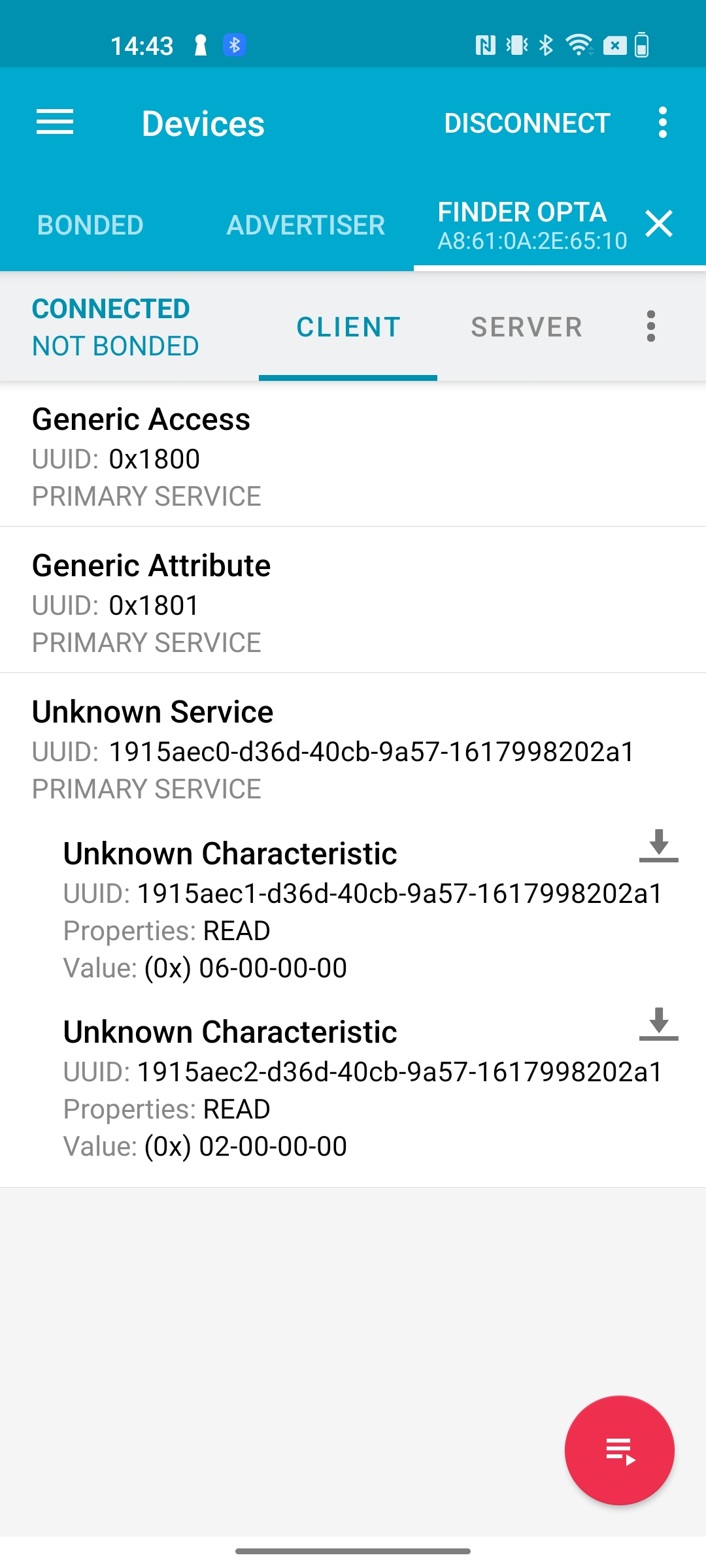
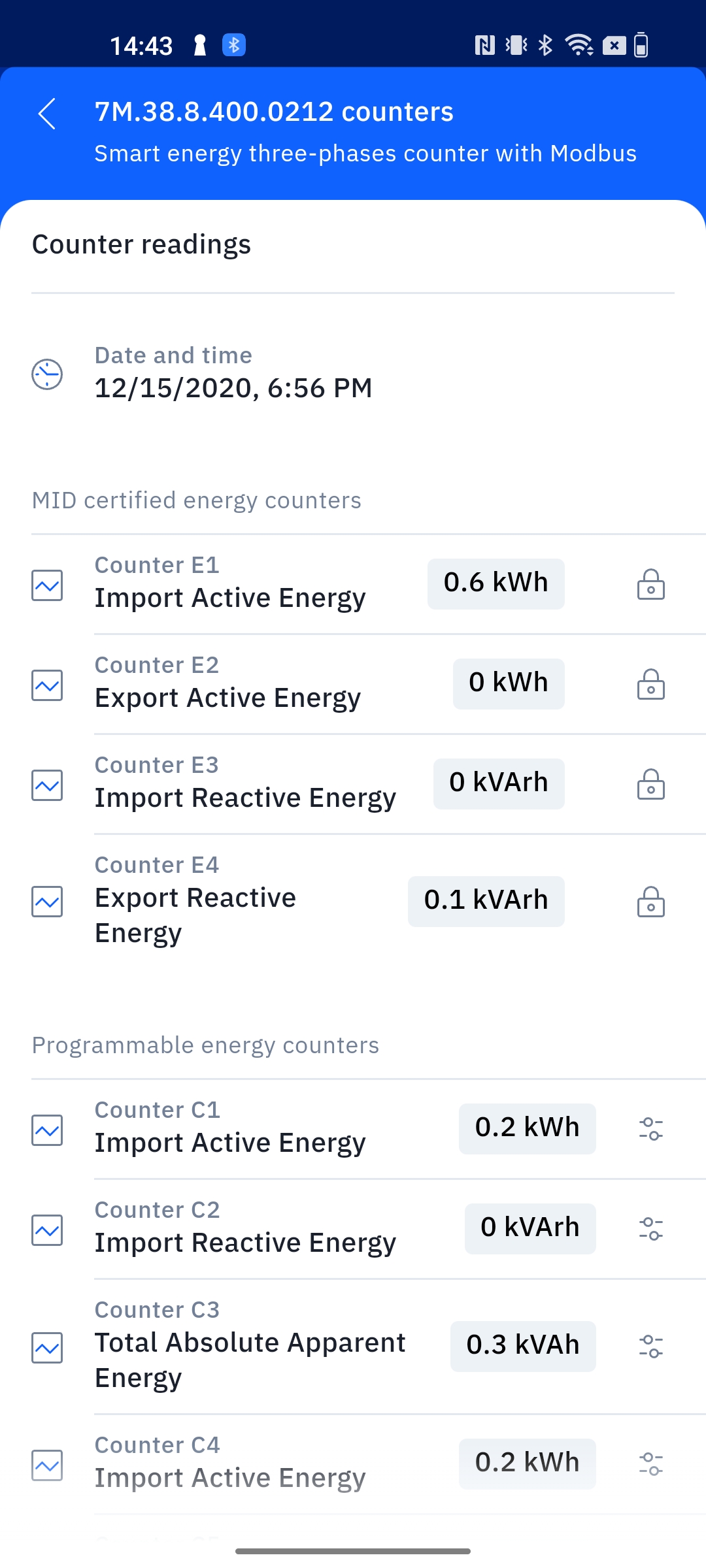
The read values tell us that we have an Import Active Energy of 6*10^2 wH =
600 wH = 0.6 kwH. Now we can read the Finder 7M energy meter via NFC using
the Finder Toolbox
application
to check that we are reading a correct value:
Conclusion
This tutorial shows how to configure the Finder Opta as BLE Peripheral, in
order to expose two read-only Characteristics from which a Central can read the
Import Active Energy stored in the MID certified counter of a Finder 7M energy
meter connected to the Finder Opta via Modbus.